To connect your property to SES.HOSPEDAJES, you need a registered establishment, a digital certificate or Cl@ve access, and the web service credentials sent to you by email. Once you have these, you can enter them in the Holidu app so guest registration data is transferred automatically after online check-in.
SES.HOSPEDAJES is the official platform from the Spanish Ministry of the Interior. It collects guest information as required by Royal Decree 933/2021. This guide explains how to get your credentials and how to connect them to your Holidu account.
Important: Imported bookings (those not created directly through Holidu) are not linked to SES.HOSPEDAJES. Holidu cannot send guest information for these bookings automatically, so you must submit the data manually through your SES.HOSPEDAJES account.
How do I get my SES.HOSPEDAJES credentials?
You register your property on the Ministry portal, sign the form, and receive your credentials by email. The steps below walk you through the process.
Step 1: Create an account or log in
Go to the Ministerio del Interior website and click Hospedajes y alquiler de vehículos.
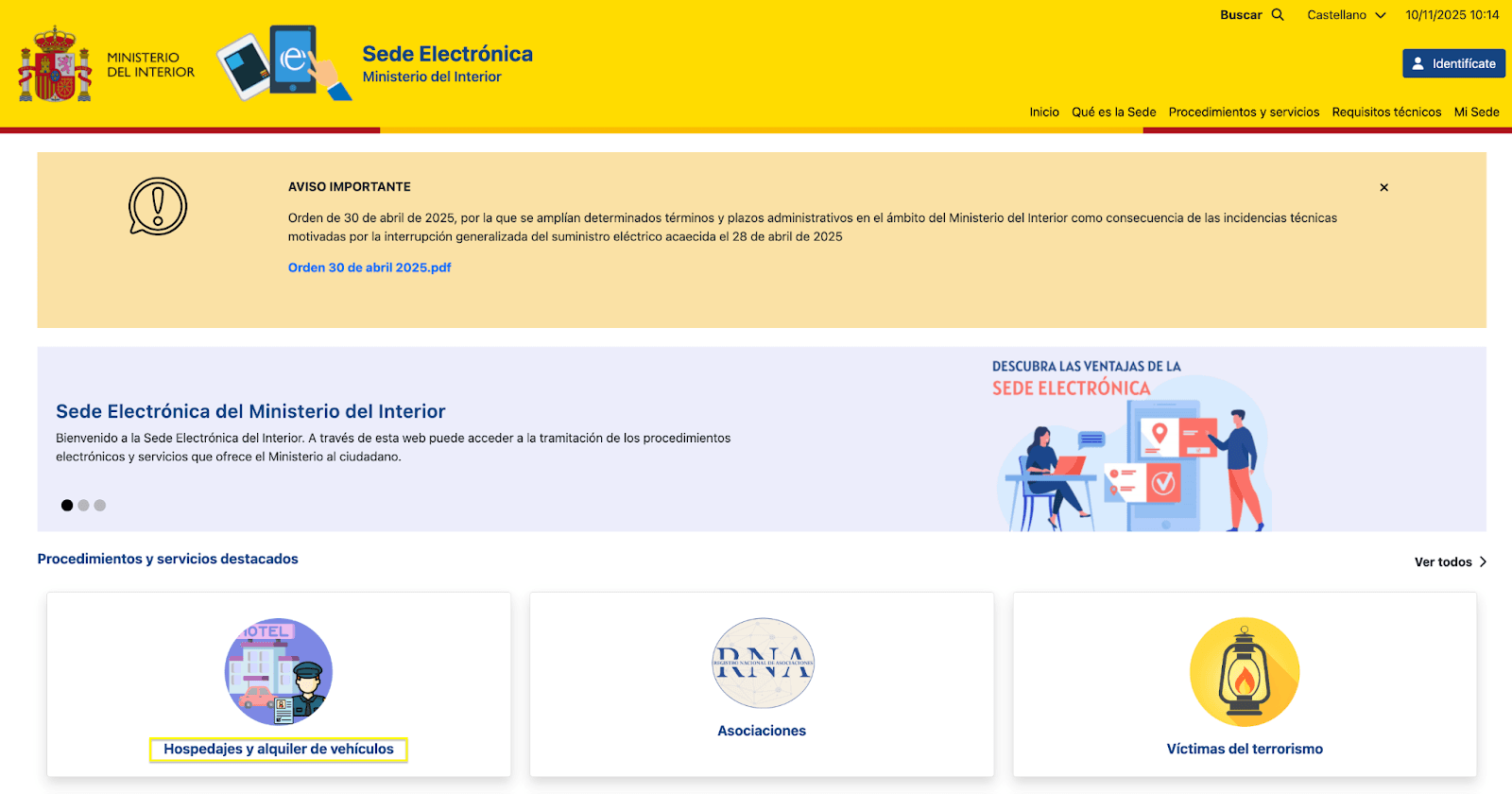
You will see three options:
- Acceso al registro de establecimientos y entidades: choose this if you have no account and no Cl@ve registration.
- Acceso a la consulta y envío de comunicaciones de actividades de hospedajes o alquiler de vehículos: choose this if you already have a Cl@ve registration.
- Acceso a la consulta y envío de comunicaciones de actividades de hospedajes o alquiler de vehículos (login): choose this if you already have a login.
Step 2: Select your verification method
Get and install a digital certificate, or use Cl@ve PIN or DNIe. If you need a digital certificate, request one from FNMT. If you need Cl@ve, register for it first. Then click the “@” icon on the SES.HOSPEDAJES portal to begin.
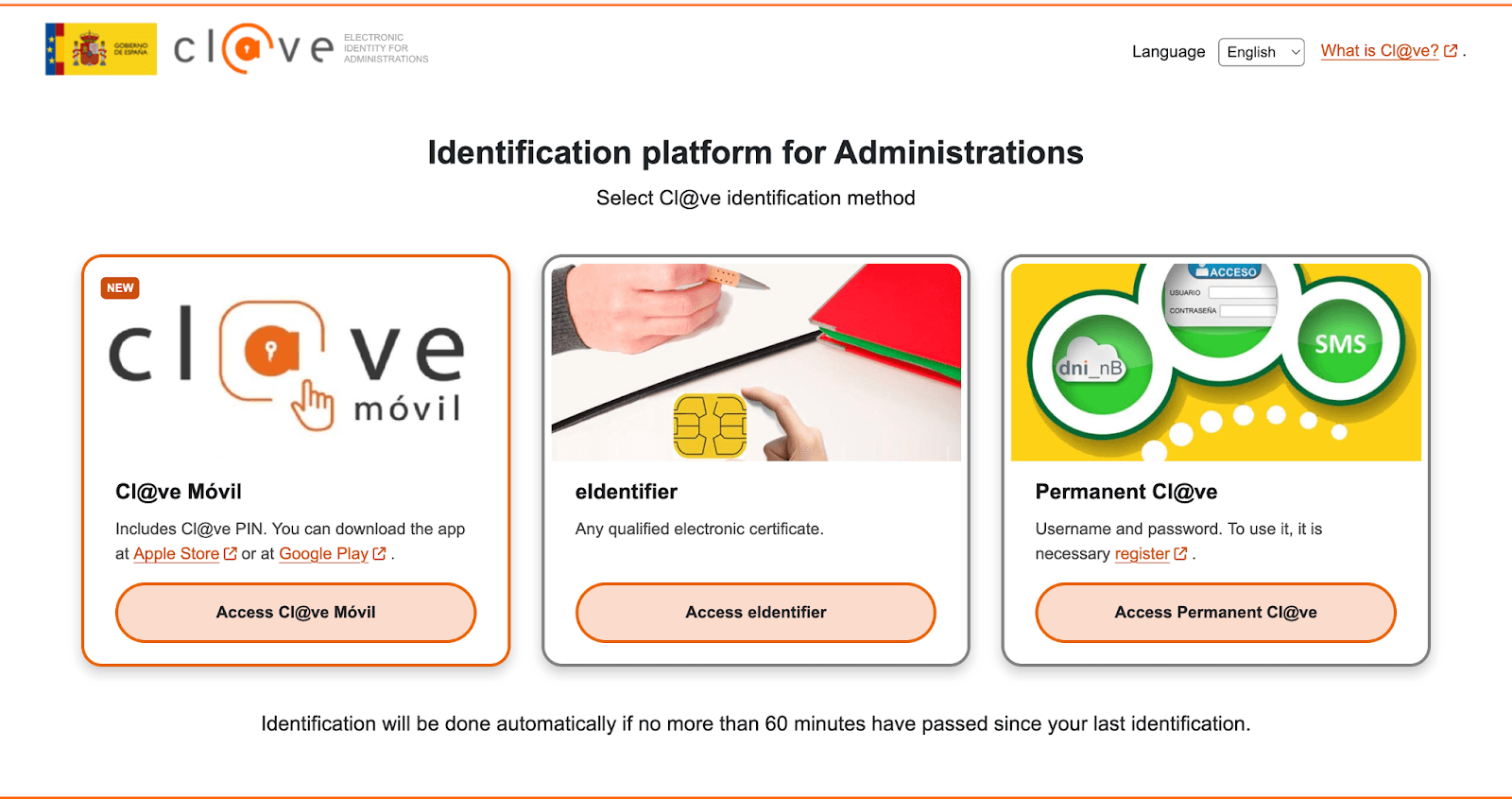
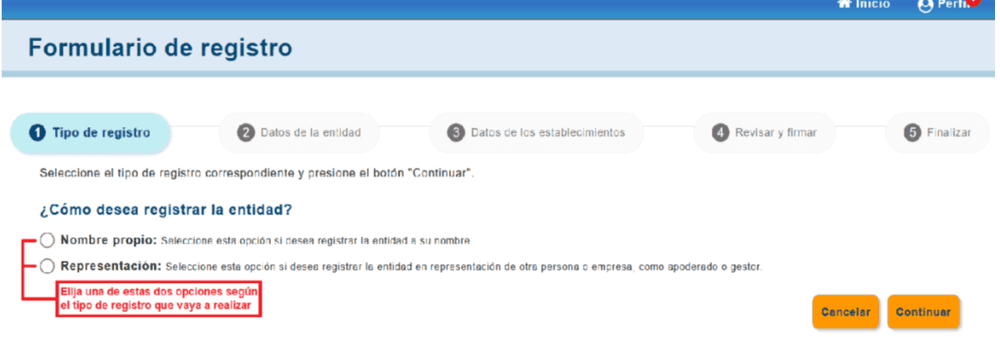
Step 3: Choose your registration type
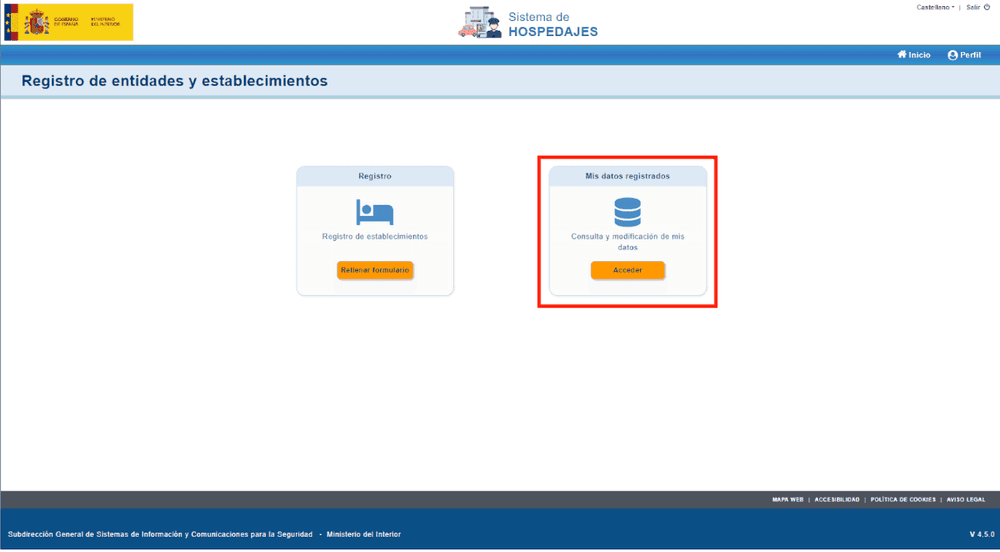
After logging in, go to “Registro de entidades y establecimientos.” Select the registration type, such as “Hospedaje turístico,” before you continue.
Step 4: Complete your registered data and enable web services
Open “Mis datos registrados.” Fill in all required fields and tick “Envío de comunicaciones por servicio web.”
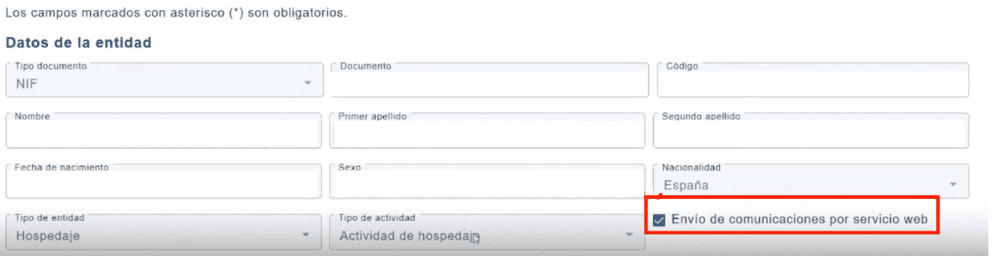
Note: You must tick this box before signing. Otherwise, your web service credentials will not be generated correctly.
Step 5: Register your properties
When your personal data is complete, register each property. You will need its name, address, and license number.
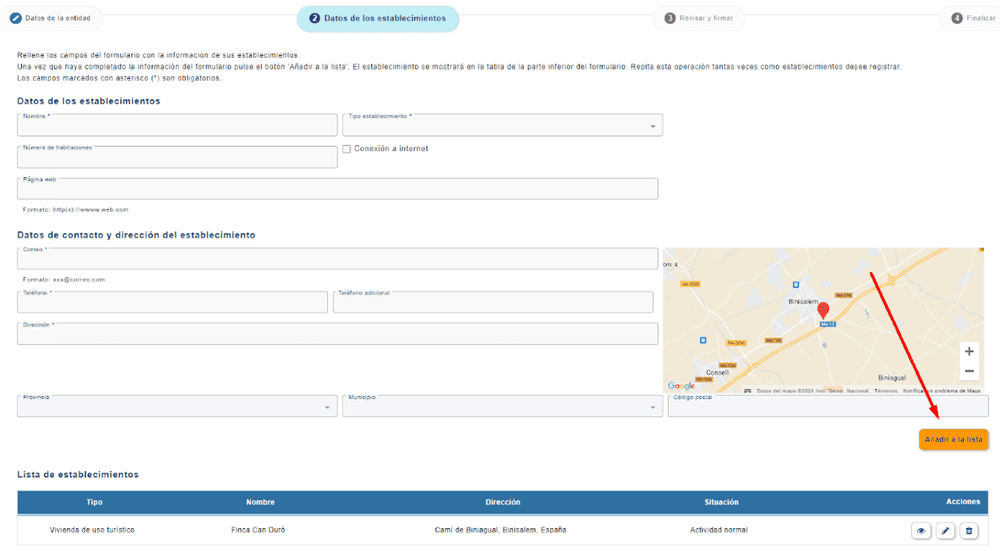
Step 6: Review and sign
Check your information and sign with Autofirm@ or Cl@ve Firma. Make sure the web service option is active before you sign.
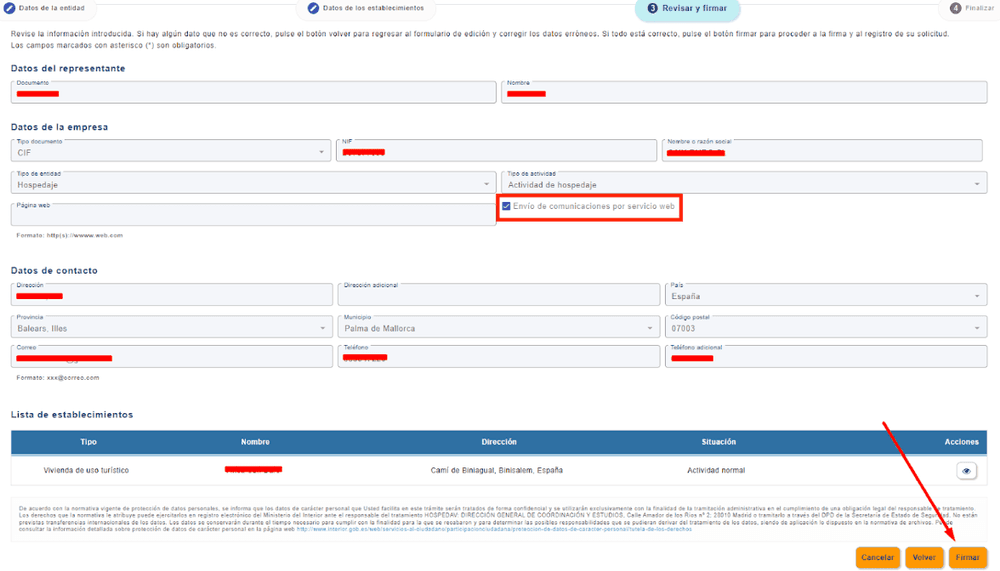
Step 7: Receive your credentials
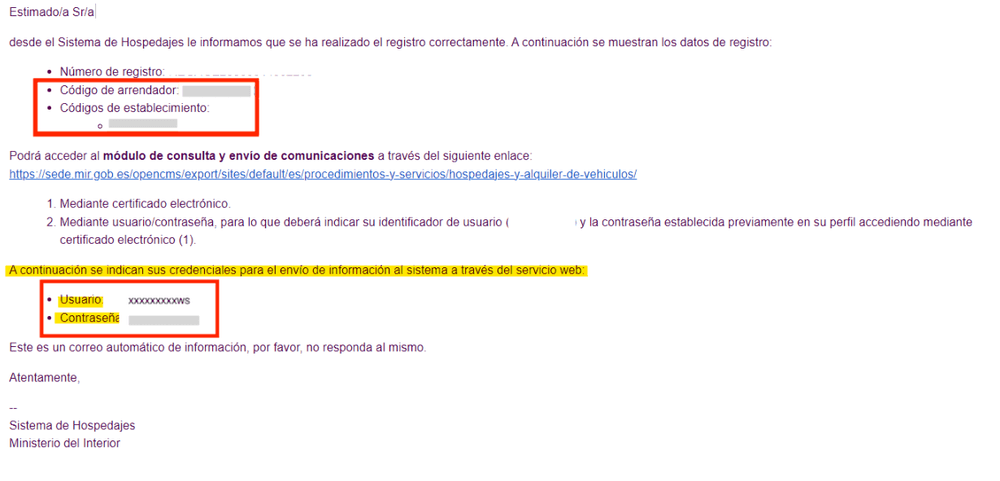
After signing, you will receive an email from no-reply@hospedajes.mir.es with your login details. It includes your owner code, property code, and web service credentials. The web service username ends in “WS.”
What is the Online Check-in feature?
The Online Check-in feature connects your property directly to SES.HOSPEDAJES. After setup, Holidu automatically transfers guest data each time a guest completes the online check-in form. For more details, read our frequently asked questions about guest check-in.
How do I connect SES.HOSPEDAJES to Holidu?
Make sure you are using the latest version of the Holidu app before you start. Then follow these steps:
- Open the Holidu app.
- In the left side menu, go to Tools → Online check-in.

- Click Configure next to the property you want to connect.
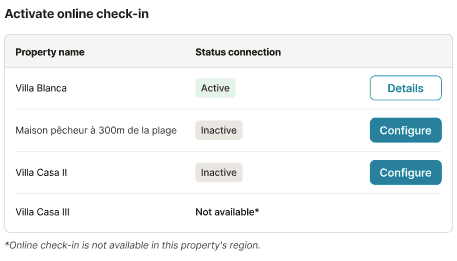
- Fill in the form:
- Click Statistics connection.
- Select SES.HOSPEDAJES.
- Enter your credentials: username, password, accommodation code, and landlord code.
- Click Validate.
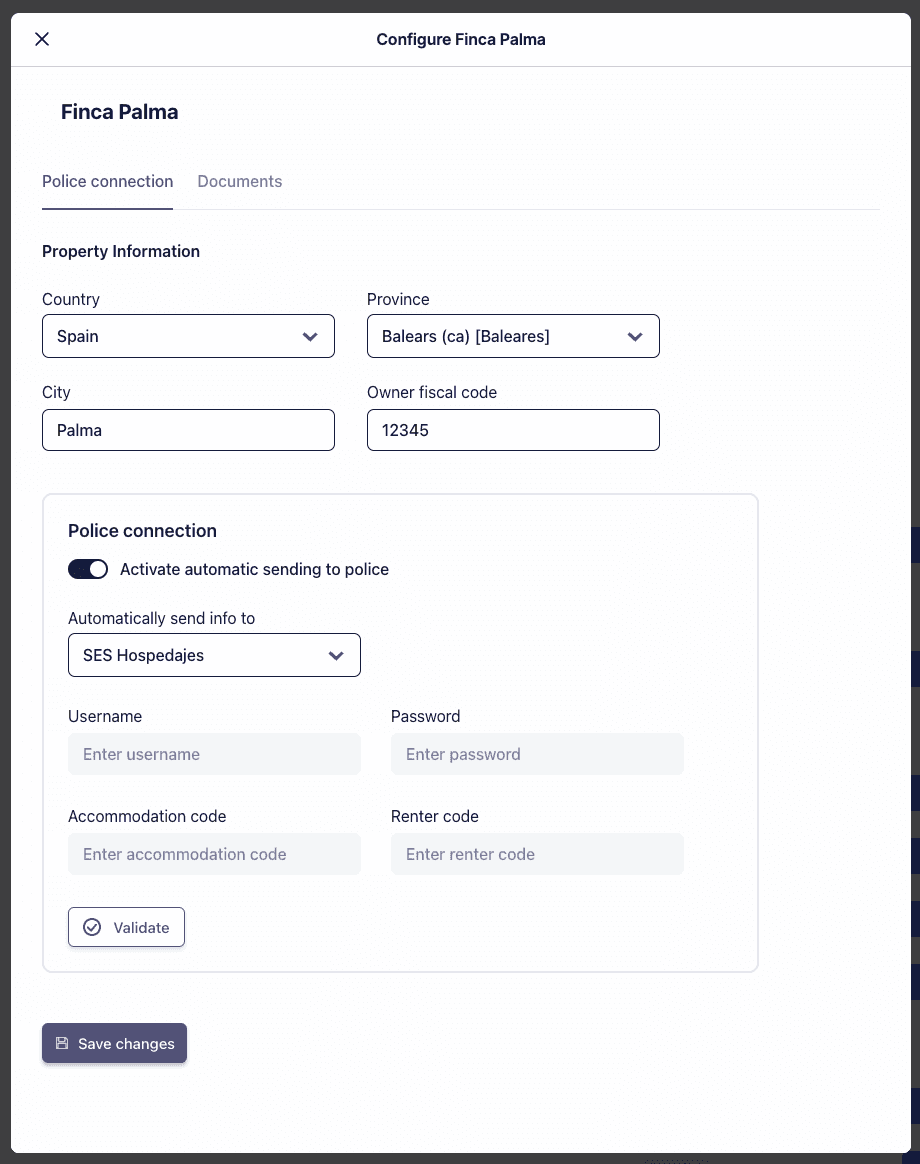
- Click Save changes.
- If no error appears, your connection is active.
Note: If your property is in Catalonia, select Mossos d'Esquadra. If it is in the Basque Country, select Ertzaintza.
What should I do if my SES.HOSPEDAJES credentials do not work?
If you have credential problems, you can retrieve or update your web service username and password from the SES.HOSPEDAJES platform:
- Open the SES.HOSPEDAJES platform.
- Select the “@” sign for access to the Registry of Establishments and Entities.
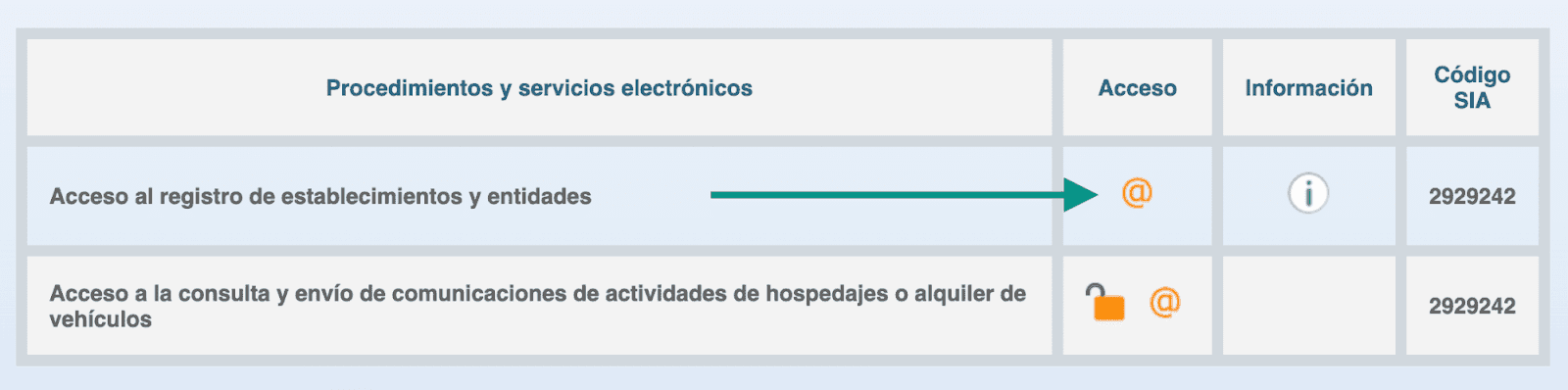
- Log in with your digital certificate or the
Do you want to contact us?
We’re here to help. You can contact us directly if you need assistance or have questions.
Contact us