With Holidu, you can collect your guests' information automatically and send it to the SIBA portal (Sistema de Informação de Boletins de Alojamento). This helps you meet Portugal's local guest registration rules. This guide explains how to connect Holidu to SIBA, what happens after activation, what guests see, what each form status means, and how to download the guest registration form (Boletim de alojamento).
Note: Holidu helps with the collection and transfer of guest data, but legal compliance remains the responsibility of the host. For full legal information, please consult the official SIBA portal.
1. Before You Start: What Are the Prerequisites?
Before you activate the guest registration feature with Holidu, make sure that:
- You already have a property registered on the official SIBA portal: https://siba.ssi.gov.pt
- You have the following SIBA credentials available:
- NIF of the Hotel Unit (Unidade Hoteleira)
- Establishment Code (Estabelecimento)
- You have your Authentication Key (Chave de Ativação), usually a 12-digit password. These credentials must be the same ones you use to access the official SIBA Portal.
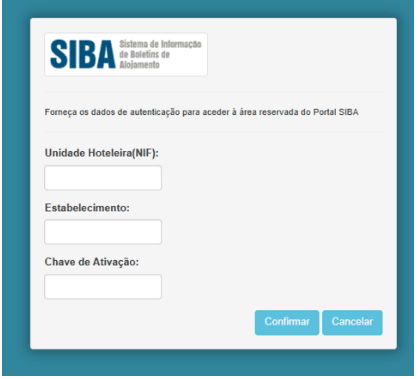
- You know which bulletin submission method (Método de envio) is active in your SIBA portal account. Both "SEF-SIBA web service integration" and "SEF-SIBA Página no portal integration" can be connected to Holidu. The method you select in the Holidu app must match the one configured in SIBA. See section 2 below for the required fields of each method and for how to switch between them.
- Log in to the SEF account at https://siba.ssi.gov.pt/s/an/default.aspx to check the current submission method.
If you need to change the submission method and cannot do it yourself, you must contact SIBA directly at https://siba.ssi.gov.pt/contactos to request the change.
2. How to Configure Online Guest Registration Between Holidu and SIBA
- In your Holidu app, go to "Tools" in the left side menu and then click "Online Check-in".

- You will see a list of your properties. Click "Configure" next to the property you want to connect.
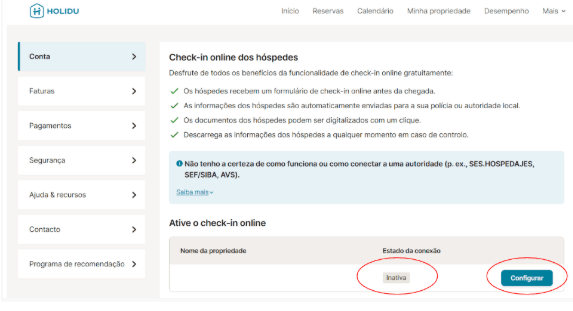
- Fill in the form with your information and your credentials from the SIBA Portal, and enable "Send data automatically to the responsible authority".

- Select the sending method. For Portugal, there are two possible connection methods, and each one requires different fields:
- SEF-SIBA web service integration: see Option A below
- SEF-SIBA Página no portal integration: see Option B below

Option A: "SEF-SIBA web service integration"
Use the same credentials you use to access the SIBA portal at the SIBA login page.
The required login fields are:
| Field in the Holidu app | SEF/SIBA portal field |
|---|---|
| Username | Unidade Hoteleira (NIF of the hotel unit) |
| Password | Chave de Ativação (activation key) |
| Establishment number | Estabelecimento (establishment code) |
For the remaining fields (postal code, postal area, contact name, email, and phone number), enter exactly the same information that appears in your SIBA account under "Atualização dos dados de inscrição": SIBA registration data update page.
On the same SIBA page, the Método de envio must be set to "Web Service" for this option to work. If it is set to something else, follow the steps in "How to switch between the two methods" below.
Option B: "SEF-SIBA Página no portal integration"
Use the same credentials you use to access the SIBA portal at the SIBA login page.
The required fields are:
| Field in the Holidu app | SEF/SIBA portal field |
|---|---|
| Username | Unidade Hoteleira (NIF) |
| Password | Chave de Ativação (activation key) |
| Establishment number | Estabelecimento (establishment code) |
No address or contact details (postal code, postal area, contact name, email, phone number) are needed for this option. Only the three fields above are required.
Only select "Página no portal" if this is the sending method configured in your SIBA account settings. You can verify it in the SIBA portal under "Atualização dos dados de inscrição".
How to Switch Between the Two Methods
The sending method selected in the
Do you want to contact us?
We’re here to help. You can contact us directly if you need assistance or have questions.
Contact us